 PoE 2 Planner
Open planner ↗
PoE 2 Planner
Open planner ↗
Passive tree guide · Mobile & desktop
Export your passive tree to PoE 2
Plan your passives in the browser, download a .build file,
and follow your tree in Path of Exile 2’s in-game Build Planner.
Free to plan and download. A GGG account is needed for the website upload.
From your browser to the game
-
Plan your passive tree
Open the PoE 2 passive-tree planner, choose your class and optional ascendancy, and allocate your passives. Select an unallocated node to preview its path, then select it again to commit.
On a phone, tap the menu button in the top-left corner to open the toolbar. If you use separate weapon-set paths, enable Weapon Sets and plan them with Main, Set 1, and Set 2.
-
Choose “Export to PoE 2”
In the toolbar, select Export to PoE 2. You need at least one allocated passive before you can download a build.
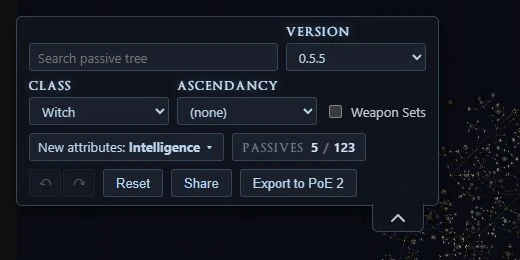
The export button is in the toolbar’s action row. Select the screenshot to view it full size. -
Name and download your build
Enter a name you will recognize in-game, then choose Download build. Save the
.buildfile to Files or Downloads on your device. Keep its file extension as.build.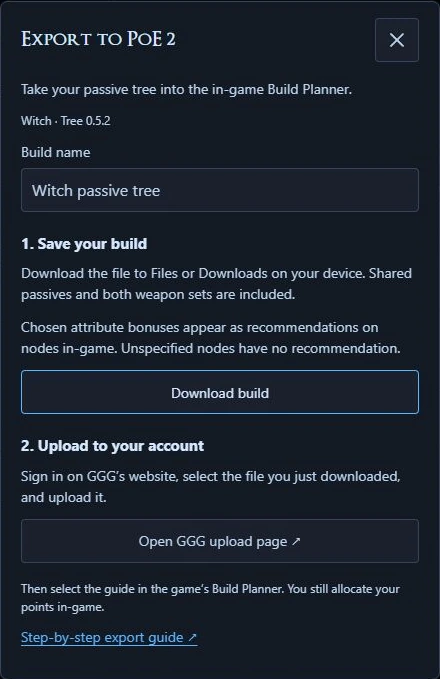
Download the file first, then open GGG’s upload page. Select the screenshot to view it full size. -
Upload the file to your GGG account
Select Open GGG upload page in the export dialog, or open the official upload page ↗. Sign in to the account you use to play, select the file you downloaded, and upload it. Follow the website’s prompts to make the build available to your account.
You can do this from your phone’s browser; choose the saved file from Files or Downloads.
-
Select the guide in the in-game Build Planner
Open Path of Exile 2 and select your uploaded guide in the game’s Build Planner. Use it to follow your planned passive tree. You still spend your points and choose attribute bonuses in-game.
What does the export include?
This planner exports the passive-tree portion of a build:
- Your allocated shared passives and both weapon-set branches.
- Your selected ascendancy and its allocated passives, when chosen.
- Recommendations for attribute bonuses you explicitly selected. Unspecified nodes have no recommendation.
- The build name and a link back to your planned tree.
Gear, skill gems, support gems, and leveling stages are not included. Download a new file and upload it again when you want to take later edits into the game.
Alternative for Windows players
Use a local BuildPlanner folder
If you play on Windows, you can place your downloaded .build file in
the game’s local BuildPlanner folder instead of uploading it:
C:/Users/Name/Documents/My Games/Path of Exile 2/BuildPlannerReplace Name with your Windows user folder. This is GGG’s documented
default location; your Documents folder may be somewhere else, for example under OneDrive.
GGG says the game detects changes in this folder. See the official Build Planner documentation for file locations and the account-based alternative.
Troubleshooting your export
Why is “Download build” disabled?
Allocate at least one passive and enter a build name that is not blank. If an error appears after downloading is attempted, follow its message and try again.
Where is the file on my phone?
Check your browser’s downloads list and your Files or Downloads app.
Save the file to your device before selecting it on GGG’s upload page.
The filename ends in .build and includes the tree version.
Does a Share link work as an in-game import?
The Share button creates a link that opens your tree in this website.
To use the tree in-game, choose Export to PoE 2 and download the .build file.
Why can’t I find the guide in-game?
Check that you uploaded the file to the account you use to play and completed the website’s prompts.
For a local Windows import, check the folder and confirm the file ends in .build,
rather than .build.txt. Use a tree version that matches the game you are playing.